Find the Best Suitable Solution

IPTV Installation Guide: Step by Step

Set Up OptiWeb IPTV on Your Device in Under 10 Minutes

Please note that IPTV applications may be free, paid, or offer optional premium features depending on the platform and developer. App availability and pricing may change, so please check the official app store or developer website before installation.

Official OptiWeb IPTV guide · Updated October 2026

Setting up IPTV is easier than it looks. This IPTV installation guide covers everything you need to activate your OptiWeb IPTV service on Samsung and LG Smart TVs, Amazon Fire TV Stick, Android, iPhone and iPad, Windows, Mac, MAG Box and TiviMate: what you need before you start, which app to choose, detailed steps with screenshots and fixes for the most common errors.

How It Works in 3 Steps

1. Install the app

Download a compatible IPTV app on your device: VU Player Pro, IBO Player, TiviMate…

2. Send us your details

Send us the MAC Address (and Device Key) shown in the app, or receive your Xtream Codes login.

3. Enjoy

Restart the app: your channels, movies and series load automatically.

Requirements Before You Start

An active subscription or a free trial

You need an active OptiWeb IPTV subscription or a free trial. Don’t have one yet? Check our pricing.

A stable internet connection

Picture quality depends mainly on your connection. Here are the speeds we recommend per screen:

Quality Recommended speed
SD 10 Mbps
HD / Full HD 20 Mbps
4K 30 Mbps or more

If possible, connect your TV or device with an Ethernet cable: it is more stable than WiFi, especially during live sports.

A compatible device

Samsung (Tizen) or LG (webOS) Smart TV, Amazon Fire TV Stick, Android TV / Google TV, Android TV Box, Android phone or tablet, iPhone, iPad, Windows or Mac computer and MAG Box.

Which IPTV App Should You Choose?

Your subscription works with several apps. Depending on the app, activation is done with your MAC Address (we load the playlist for you) or with your Xtream Codes login (username, password and server URL that you enter yourself).

App Devices Activation Best for
VU Player Pro Smart TV, Android, iPhone/iPad, Windows, Mac MAC + Device Key The easiest option on almost every device
IBO Player Samsung and LG Smart TV, Android MAC + Device Key Smart TV
Hot Player Samsung and LG Smart TV MAC Smart TV
TiviMate Fire TV Stick, Android TV, TV Box Xtream Codes Advanced users who want the best TV guide (EPG)
IPTV Smarters Android, iPhone/iPad, Windows, Mac Xtream Codes Multi-platform alternative
MAG portal MAG Box MAC + portal URL MAG set-top boxes

Important: some apps offer a trial period and then require their own license. This license is separate from your OptiWeb IPTV subscription.

Samsung and LG Smart TV with VU Player Pro

5 minEasyMAC activation
1

Search for VU Player Pro

Open your TV app store: Apps on Samsung or LG Content Store on LG. Press the search icon and type VU Player Pro.

You can also use HotIPTV, SetIPTV, NetIPTV, Smart IPTV or IBO Player.

Search for VU Player Pro in the LG Smart TV app store
Search for VU Player Pro in your TV app store
2

Install the app

Open the VU Player Pro page and press Install.

VU Player Pro app page with the Install button on an LG Smart TV
Press Install
3

Note your MAC Address and Device Key

Open the app. Your TV’s MAC Address and Device Key appear on screen.

TipTake a photo of the screen with your phone so you don’t make any typing mistakes.
VU Player Pro MAC Address and Device Key on a Smart TV
MAC Address and Device Key on screen
4

Send us your details

Send us the MAC Address and Device Key via WhatsApp, Email or Live Chat. We load your playlist for you.

ImportantDouble-check similar characters: 0 and O, 1 and I.
5

Restart and enjoy

Once we confirm the activation, wait a few minutes, restart your Smart TV and open VU Player Pro again.

Done: live TV, movies and series load automatically.
VU Player Pro home screen with live TV, movies and series on a Smart TV
Your playlist loaded in VU Player Pro

Stuck on a step?

WhatsApp Help

Amazon Fire TV Stick

15 minIntermediate4 parts
1. Install the Downloader app
1

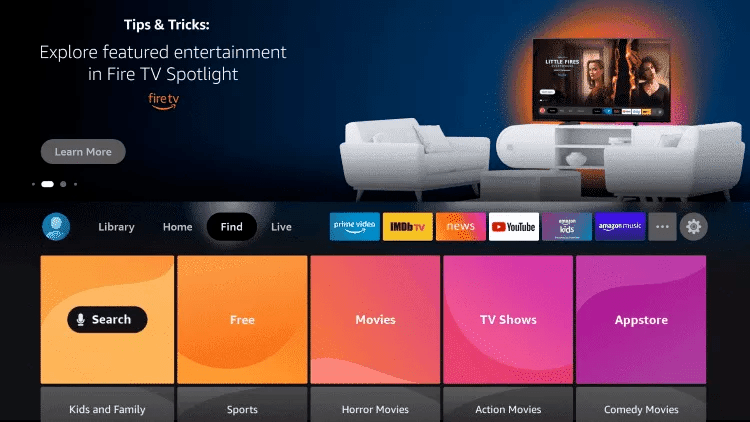
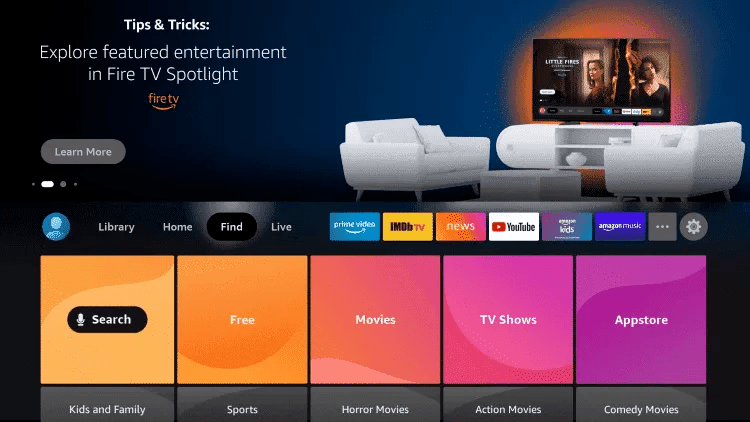
Open Find

From your Fire TV Stick home screen, select Find.

Select Find on the Amazon Fire TV Stick home screen
Select Find
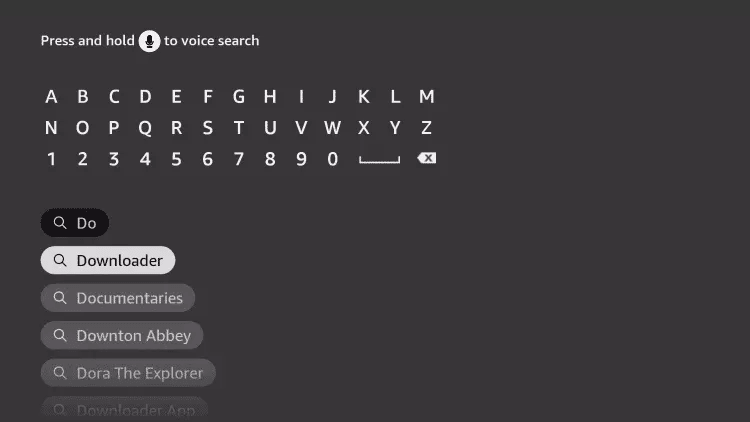
2

Type Downloader

Select Search and type Downloader.

Search for the Downloader app on Amazon Fire TV Stick
Type Downloader
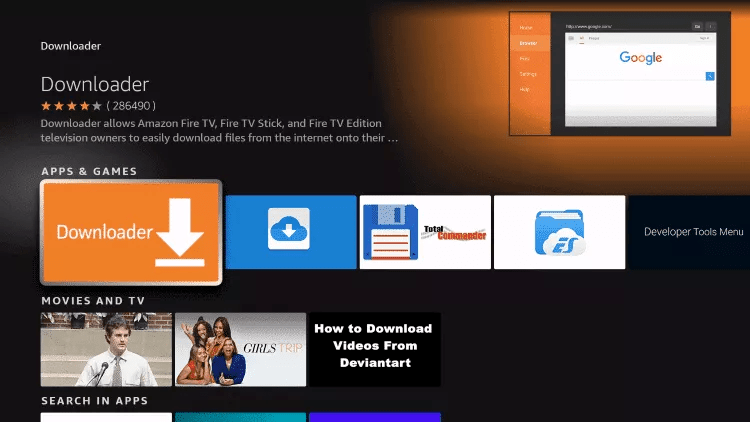
3

Select Downloader

Select the Downloader app in the search results.

Select the Downloader app on Fire TV Stick
Select Downloader
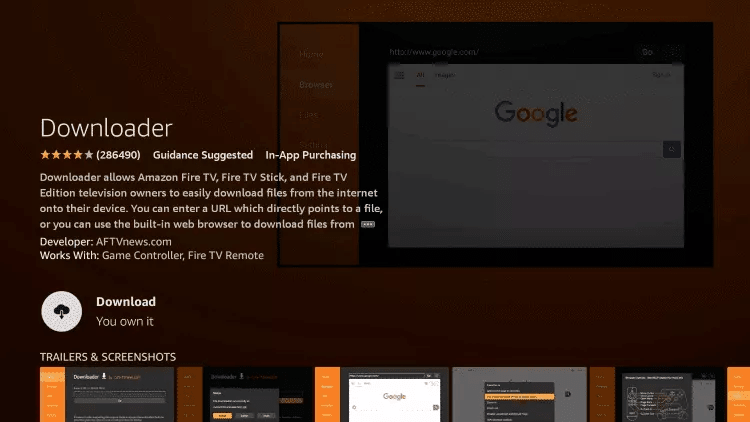
4

Download it

Click Download to install the app.

Download the Downloader app on Amazon Fire TV Stick
Click Download
5

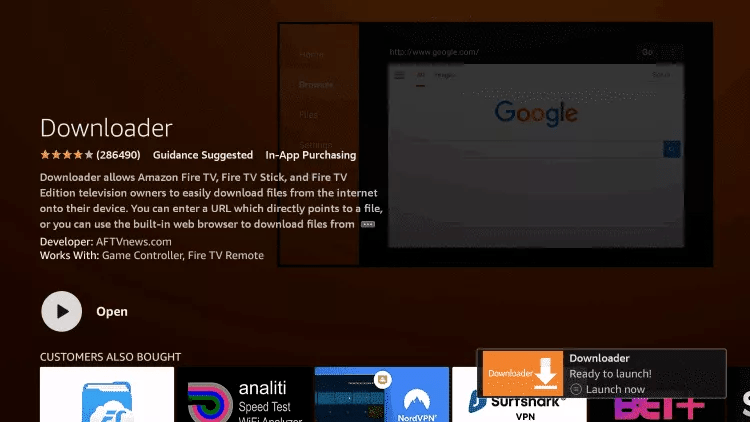
Open it

When the installation is complete, click Open.

Open Downloader after installing it on Fire TV Stick
Click Open
2. Allow apps from unknown sources
1

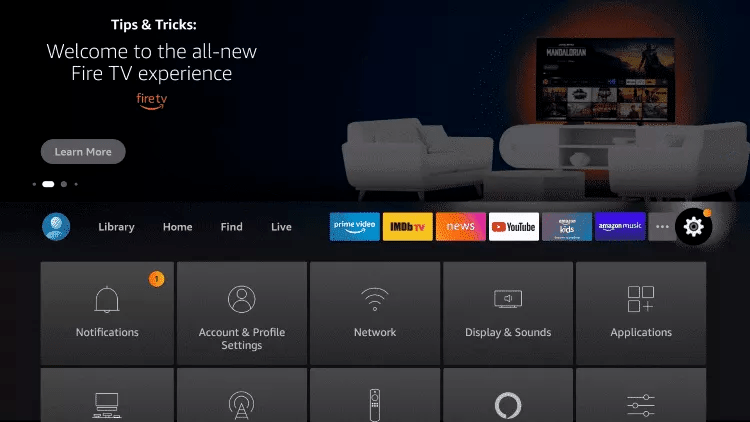
Open Settings

Go back to the home screen and open Settings (gear icon).

Open Settings on Amazon Fire TV Stick
Open Settings
2

My Fire TV

Select My Fire TV.

Select My Fire TV in the device settings
Select My Fire TV
3

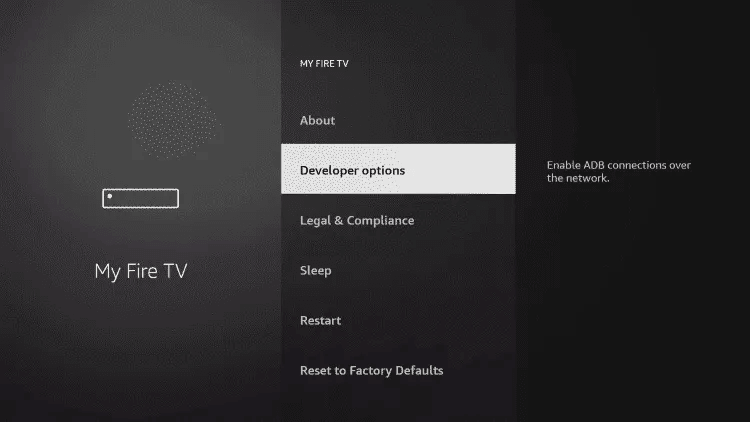
Developer Options

Open Developer Options.

Can’t see it?Go to My Fire TV › About, select your device name and press the select button 7 times in a row.
Open Developer Options on Fire TV Stick
Developer Options
4

Install unknown apps

Select Install unknown apps.

Select Install unknown apps on Fire TV Stick
Install unknown apps
5

Find Downloader

Find Downloader in the list.

Downloader turned off in the unknown apps list on Fire TV
Downloader in the list
6

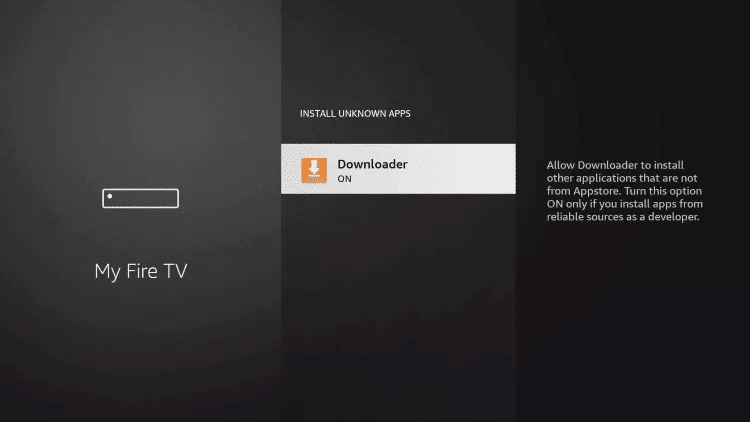
Turn it on

Turn the permission on so Downloader shows ON.

Done: Downloader can now install the IPTV app.
Turn on Downloader to install unknown apps on Fire TV Stick
Downloader set to ON
3. Install the IPTV app
1

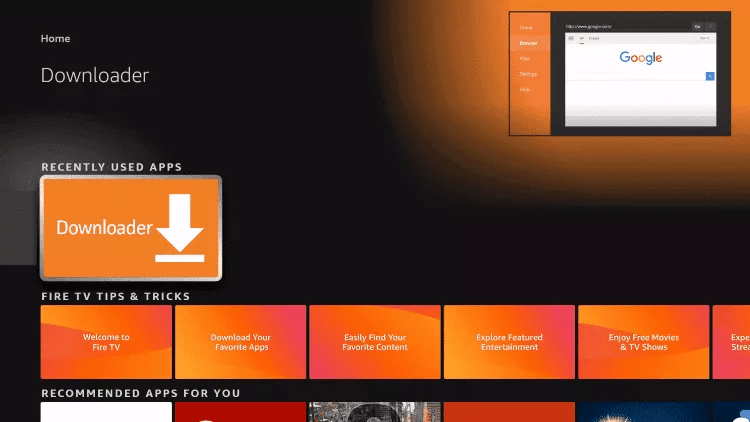
Open Downloader

Open the Downloader app.

Open Downloader on Amazon Fire TV Stick
Open Downloader
2

Allow access

If Downloader asks for permission to access your files, select Allow.

Allow file access for Downloader on Fire TV Stick
Click Allow
3

Close the quick start guide

If the “Quick Start Guide” screen appears, click OK.

Close the Downloader quick start guide on Fire TV Stick
Click OK
4

Type the app URL

In the URL field, type one of these addresses exactly as shown, then click Go:

For HOT IPTV:

https://apk.hotiptv.app

For ELK Player:

https://elkplayer.com/public/app/eklplayer.apk
5

Wait for the download

Wait for the APK file to finish downloading.

Downloading the IPTV app with Downloader on Fire TV Stick
Download in progress
6

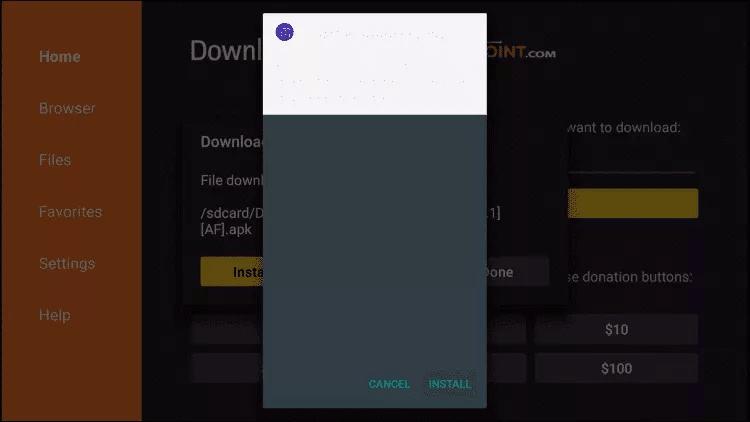
Install

When the installation screen appears, select Install.

Install the IPTV app from Downloader on Fire TV Stick
Select Install
7

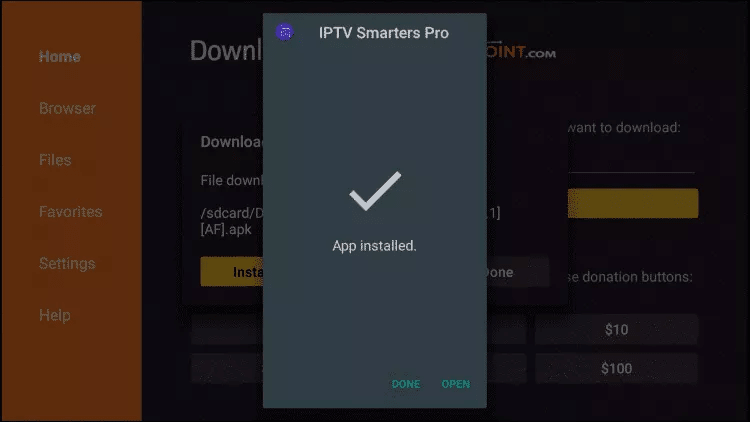
Open the app

When App installed appears, click Open.

IPTV app successfully installed on Fire TV Stick
App installed
4. Activate your service
1

Send us your MAC Address

Open HOT IPTV (or ELK Player). Your MAC Address appears on screen: send it to us via WhatsApp, Email or Live Chat.

2

Open the app again

Once we confirm the activation, close the app and open it again.

TipPress and hold the Home button on your remote, go to Apps and move the app to the first row. You can also delete the APK file from Downloader to free up space.
Done: you can now enjoy OptiWeb IPTV on your Fire TV Stick.

Stuck on a step?

WhatsApp Help

Android with VU Player Pro

5 minEasyMAC activation
1

Download VU Player Pro

Download the app from this address:

https://vuplayer.pro/vupro.apk

If your phone asks for permission to install apps from this source, tap Settings, enable Allow from this source and go back.

2

Open the app

Your MAC Address and Device Key will appear on screen.

VU Player Pro MAC Address and Device Key on Android
MAC Address and Device Key on Android
3

Send us your details

Send us the MAC Address and Device Key via WhatsApp or Email.

Done: once activated, open the app again.

Stuck on a step?

WhatsApp Help

iPhone and iPad with VU Player Pro

5 minEasyMAC activation
1

Install VU Player Pro

Open the App Store, search for VU Player Pro and tap Get, or download it from this link.

VU Player Pro on the iPhone App Store
VU Player Pro on the App Store
2

Send us your MAC Address and Device Key

Open the app, take a screenshot and send it to us via WhatsApp, Email or Live Chat.

VU Player Pro MAC Address and Device Key on iPhone
MAC Address and Device Key on iPhone
3

Open the app again

Once we confirm the activation, fully close the app and open it again.

Done: your IPTV playlist loads automatically.
VU Player Pro home screen with live TV, movies and series on iPhone
Your playlist loaded on iPhone

Stuck on a step?

WhatsApp Help

Windows and Mac

5 minEasy

Windows

1

Download VU Player Pro

Download the installer from this address:

https://vuplayer.pro/vuplayerpro.exe
2

Install and open the app

Your MAC Address and Device Key will appear on screen.

VU Player Pro MAC Address and Device Key on Windows
VU Player Pro on Windows
3

Send us your details

Send us the MAC Address and Device Key via WhatsApp or Email to complete the setup.

AlternativeYou can also use IPTV Smarters on Windows: download it from smarterspro.com.

Mac

1

Option 1: VU Player Pro

Download it from the App Store, open it and send us the MAC Address and Device Key.

2

Option 2: IPTV Smarters

Download it from smarterspro.com, install it and contact us via WhatsApp or Email to receive your login details.

Stuck on a step?

WhatsApp Help

MAG Box

10 minIntermediatePortal URL
1

Send us your MAG MAC Address

It is printed on the label under the device (it starts with 00:1A:79) and shown in Settings › Device Info.

Send it to us via WhatsApp, Email or Live Chat. After payment, we send you the portal URL.

2

Open Settings

On the MAG main menu, open Settings.

MAG 322 main menu with the Settings option
MAG main menu
3

System settings › Servers

Open System settings and select Servers.

Select Servers in MAG Box system settings
Select Servers
4

Portals

Select Portals.

Select Portals in the MAG Box Servers menu
Select Portals
5

Enter the portal

In Portal 1 name type OptiWeb, and in Portal 1 URL enter the URL we sent you. Press OK to save.

Enter the IPTV portal name and URL on a MAG Box
Portal 1 name and Portal 1 URL
6

Restart the portal

Go back to System settings and select Restart portal (or restart your MAG).

Restart the portal from MAG Box system settings
Select Restart portal
7

Open TV

Your MAG loads the portal and your channels are in the TV section.

Done: your MAG is set up.
IPTV portal loaded on a MAG Box with the TV section
Portal loaded on the MAG

Stuck on a step?

WhatsApp Help

TiviMate on Fire TV Stick and Android TV

10 minIntermediateXtream Codes

TiviMate is activated with the Xtream Codes login details we send you: server URL, username and password. If you don’t have Downloader yet, follow parts 1 and 2 of the Fire TV Stick tab (on Android TV and Google TV, install it from Google Play).

Install TiviMate

1

Open Downloader

Open the Downloader app. If asked, click Allow and then OK.

Downloader home screen on Fire TV Stick
Downloader home screen
2

Type the TiviMate URL

In the URL field, type exactly:

https://tivimates.com/tiviapk

and click Go.

3

Click Install

When the download is complete, click Install.

TiviMate download completed in Downloader with the Install button
Download complete
4

Confirm the installation

Click Install and, when it finishes, Open.

Confirm the TiviMate installation on Fire TV Stick
Confirm the installation

Add your playlist

5

Add playlist

On the welcome screen, click Add playlist.

TiviMate welcome screen with the Add playlist button
Click Add playlist
6

Choose Xtream Codes

Select Xtream Codes and enter the server URL, username and password we sent you.

ImportantRespect upper and lower case and don’t leave any spaces.
Choose Xtream Codes as the playlist type in TiviMate
Choose Xtream Codes
7

Click Next

TiviMate processes your playlist. Keep TV playlist selected, click Next and then Done.

IPTV playlist processed in TiviMate with the Next button
Playlist processed
8

Enjoy the TV guide

Your channels appear with the TV guide.

Done: TiviMate is set up.
TV guide with IPTV channels in TiviMate
TV guide in TiviMate

Stuck on a step?

WhatsApp Help

Fixes for the Most Common Errors

“Invalid details” error when logging in

Check the server URL, username and password: they must be typed exactly as we sent them, respecting upper and lower case and without spaces at the beginning or end. The safest way is to copy and paste them.

The playlist doesn’t load on my Smart TV

Check that the MAC Address you sent us is exactly the one shown on screen (watch out for 0 / O and 1 / I / l). Then close the app, unplug the TV for 30 seconds and open the app again.

Channels freeze or take a long time to load

Restart your router, connect your device with an Ethernet cable if possible and close other apps that use the internet. In the app settings, try switching the video player or clearing the cache.

“App not installed” error on Fire TV Stick

Make sure Install unknown apps is enabled for Downloader (Fire TV Stick tab, part 2) and that your Fire TV has free storage. If needed, uninstall apps you don’t use.

“Max connections reached” error

Your subscription is already in use on the maximum number of screens allowed by your plan. Close the app on your other devices and try again.

One specific channel doesn’t work

Try another channel to check that the service is working. If only one or a few channels fail, contact us so we can check them for you.

The TV guide (EPG) is empty

Look for the Update EPG or Reload playlist option in the app and wait a few minutes. The first load can take a little while.

It was working and suddenly stopped

Check that your subscription is still active and that the app license hasn’t expired. Then restart your router and your device.

Still stuck? Our team is here to help via WhatsApp, Email or Live Chat. Contact us.

IPTV Installation FAQ

Usually less than 10 minutes. On Fire TV Stick it can take a little longer the first time, because you need to install Downloader and enable permissions.

It depends on the app: with MAC-based apps (VU Player Pro, IBO Player, Hot Player) you only need to send us the MAC Address and Device Key. With TiviMate or IPTV Smarters you need the Xtream Codes login we send you: server URL, username and password.

For most users we recommend VU Player Pro, because it works on almost every device and is activated with the MAC Address. On Fire TV Stick and Android TV, TiviMate offers the best TV guide.

Some are free and others offer a trial period before asking for their own license. Always check the official app store or developer website before installing.

We recommend at least 10 Mbps for SD, 20 Mbps for HD and 30 Mbps for 4K per screen. An Ethernet connection is always more stable than WiFi.

You can install the app on all your devices. The number of screens that can watch at the same time depends on your plan: check our pricing.

Fully close the app, restart your device and open the app again. If it still doesn’t load, check the common errors section of this guide or contact us.

Yes. If you get stuck at any step, message us via WhatsApp, Email or Live Chat and we’ll guide you step by step.

Ready to Install OptiWeb IPTV?

Start with a free trial or choose your plan. If you need help, we’ll guide you through the whole installation.